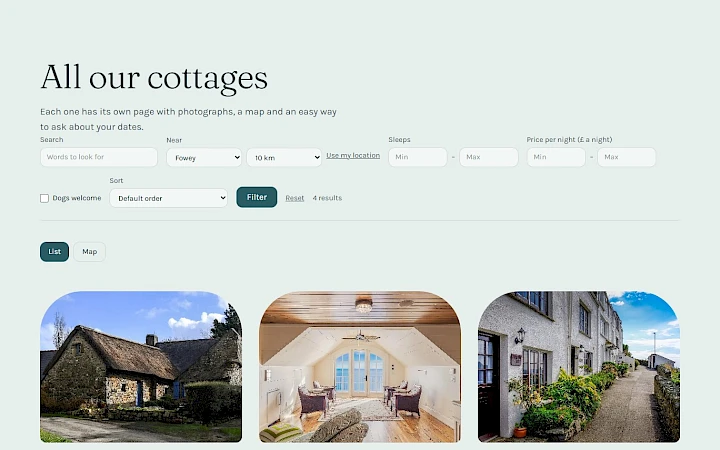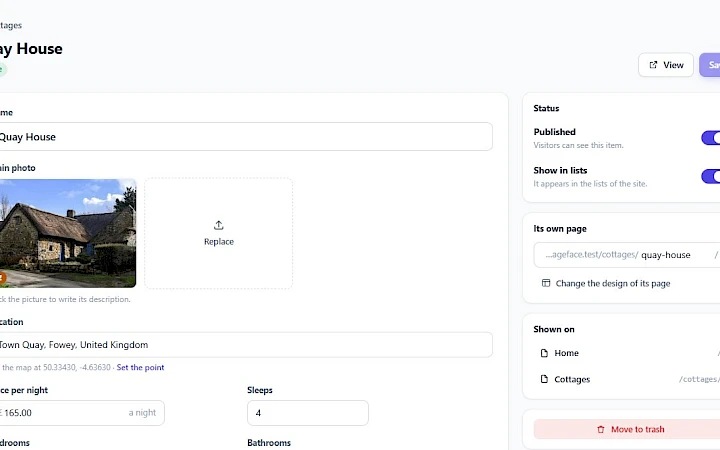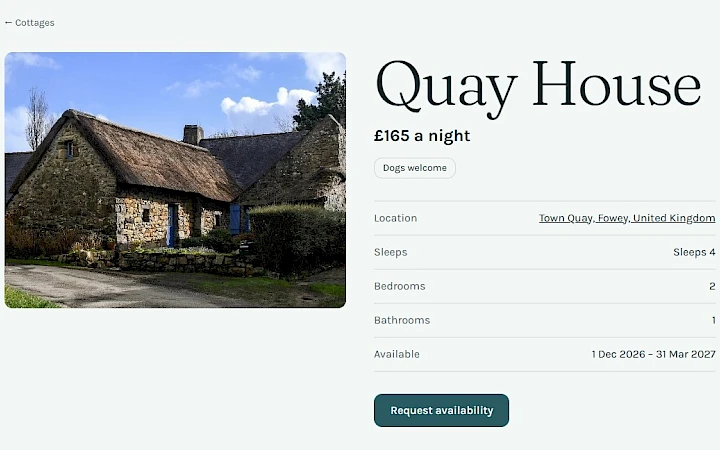
Galleries show what words cannot: the view from a cottage, the dishes of a menu, the rooms of a hotel. Since version 1.0.4 the AI assistant takes care of them for you, on a list of six items as well as on one with hundreds.
Add a photo, or two
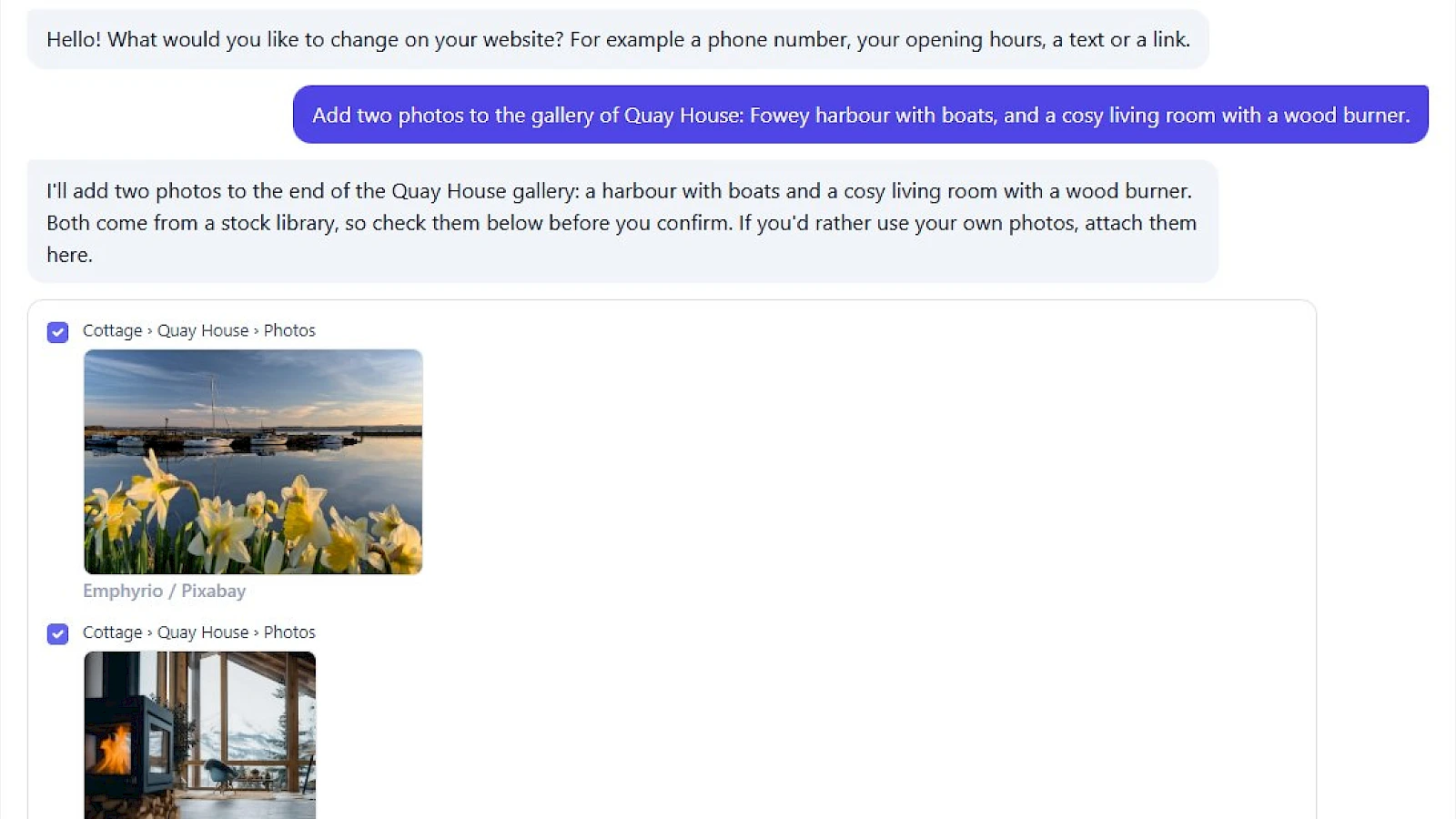
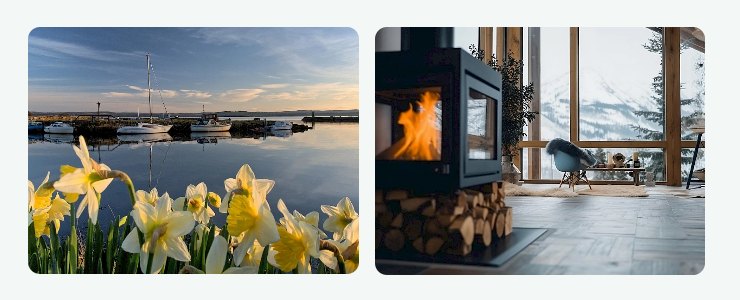
Say what you would like in your own words, for example: “Add two photos to the gallery of Quay House: Fowey harbour with boats, and a cosy living room with a wood burner.” The assistant finds suitable photos in a free stock library and shows them in its list of changes, as in the picture at the top. Nothing changes on your website until you confirm, and you can untick a photo you do not like. If you would rather use your own photos, attach them to your message.
Replace or remove a photo
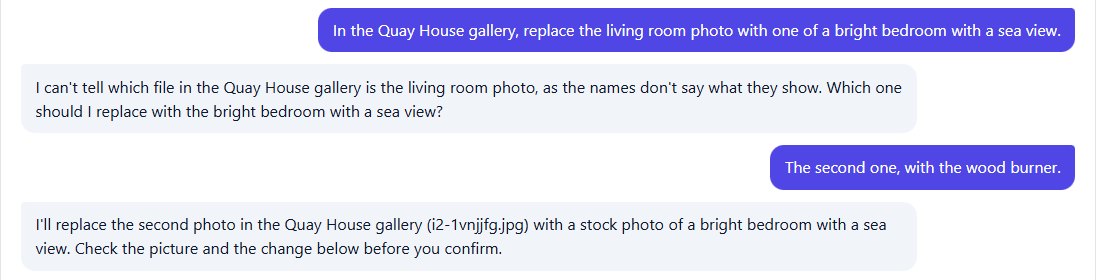
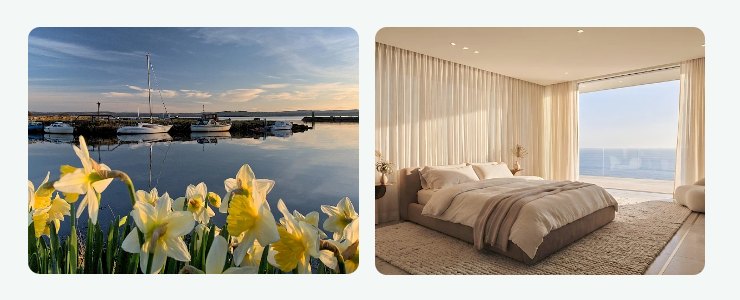
The assistant reads every photo of a gallery and knows how many it may hold. It can put a new photo in the place of another, so your gallery keeps its order, or take a photo out. When it cannot tell which photo you mean, it asks instead of guessing.
Every change can be undone
A photo that is taken out or replaced is kept aside with its descriptions and its place, and Undo puts it back where it was. A gallery that is already full, or a photo that is not in it, is refused with an explanation.
Older items, found by name
The assistant always has your most recent items at hand. Now it also finds older ones: name an item in your message, such as “Quay House”, and it reads that item from your website before it answers, up to ten items in one message. In our test, 64 newer cottages came before Quay House, and the assistant found it straight away. Names in Chinese, Japanese and Korean are matched as they are written. If a name is not clear enough, the assistant asks for the exact one.
Small things that add up
- When it changes a date, the assistant keeps its time.
- It can set fields where several choices can be ticked.
All of this is part of every website from version 1.0.4. Open the AI assistant from the AI Builder page and try it on your own galleries.