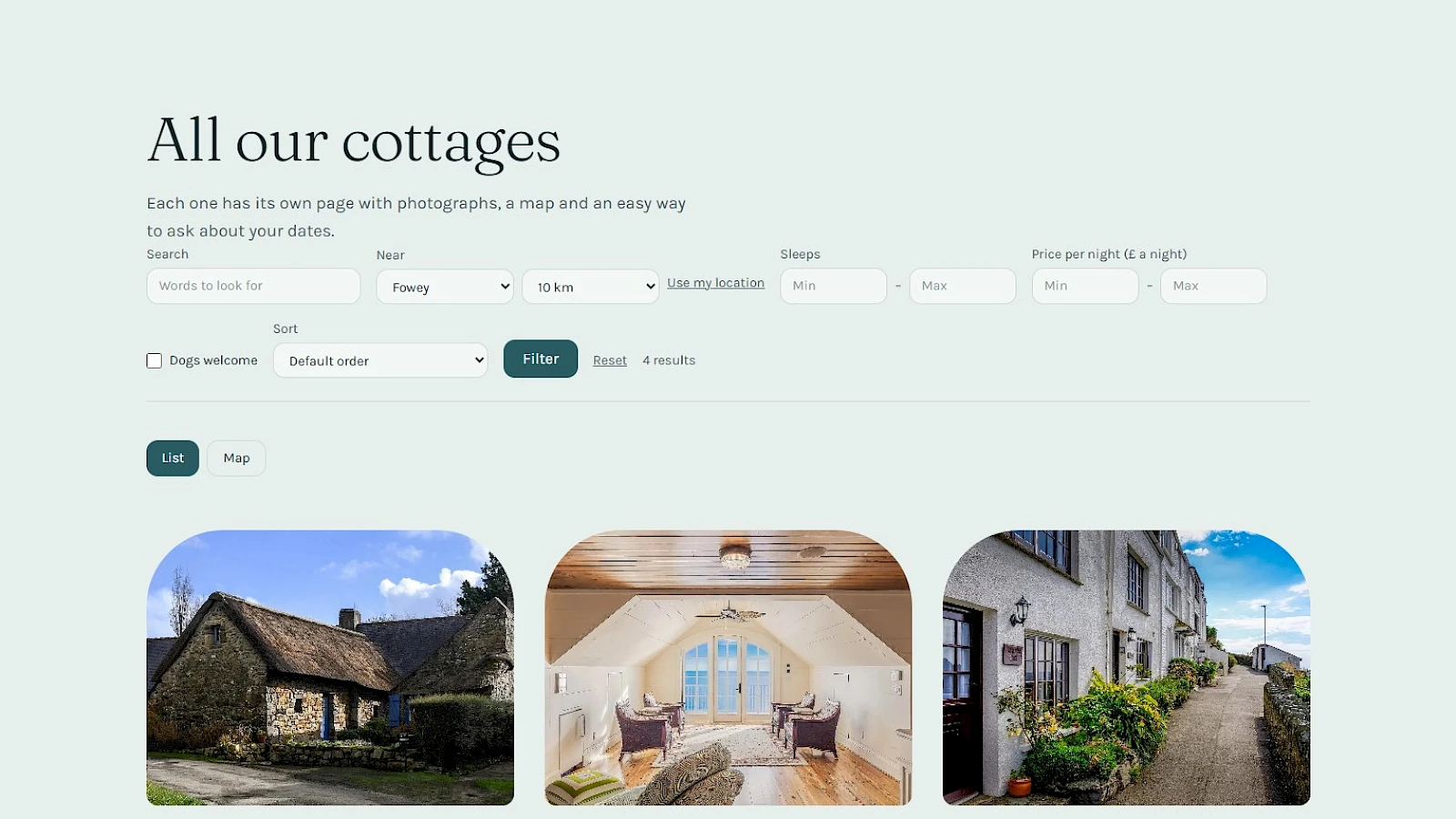
A list page is where a visitor makes up their mind: the cottages you rent out, the flats you sell, the courses you teach. Until now they had to scroll through all of it. Since version 1.0.4, every list on a Pageface website can have a search and filter bar above it.
Search by words
The search box looks through each item’s name and its own text. Every word the visitor types has to appear, so “harbour view” only finds the cottages that mention both.
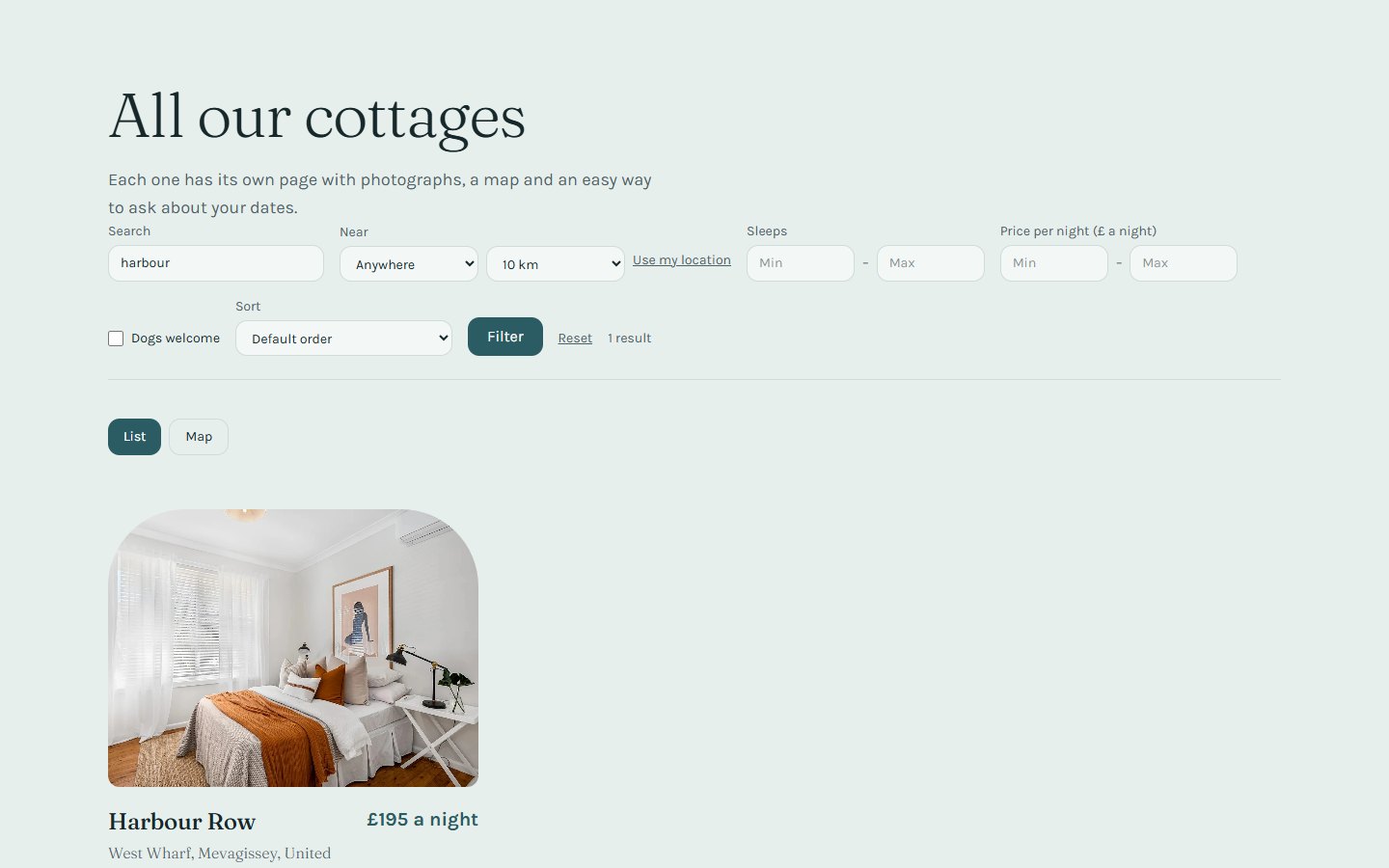
Filter by what matters to your visitors
- Choices: a type of property, a level, a cuisine. Where several can be ticked, any of them matches.
- Numbers: a price, a surface, a number of bedrooms, from–to.
- Yes or no: “Dogs welcome”, “Parking”, “Step-free access”.
- Dates and periods: what happens on a day, or what is free between two dates.
- Related items: a teacher or an agent. Only the ones your list actually uses are offered.
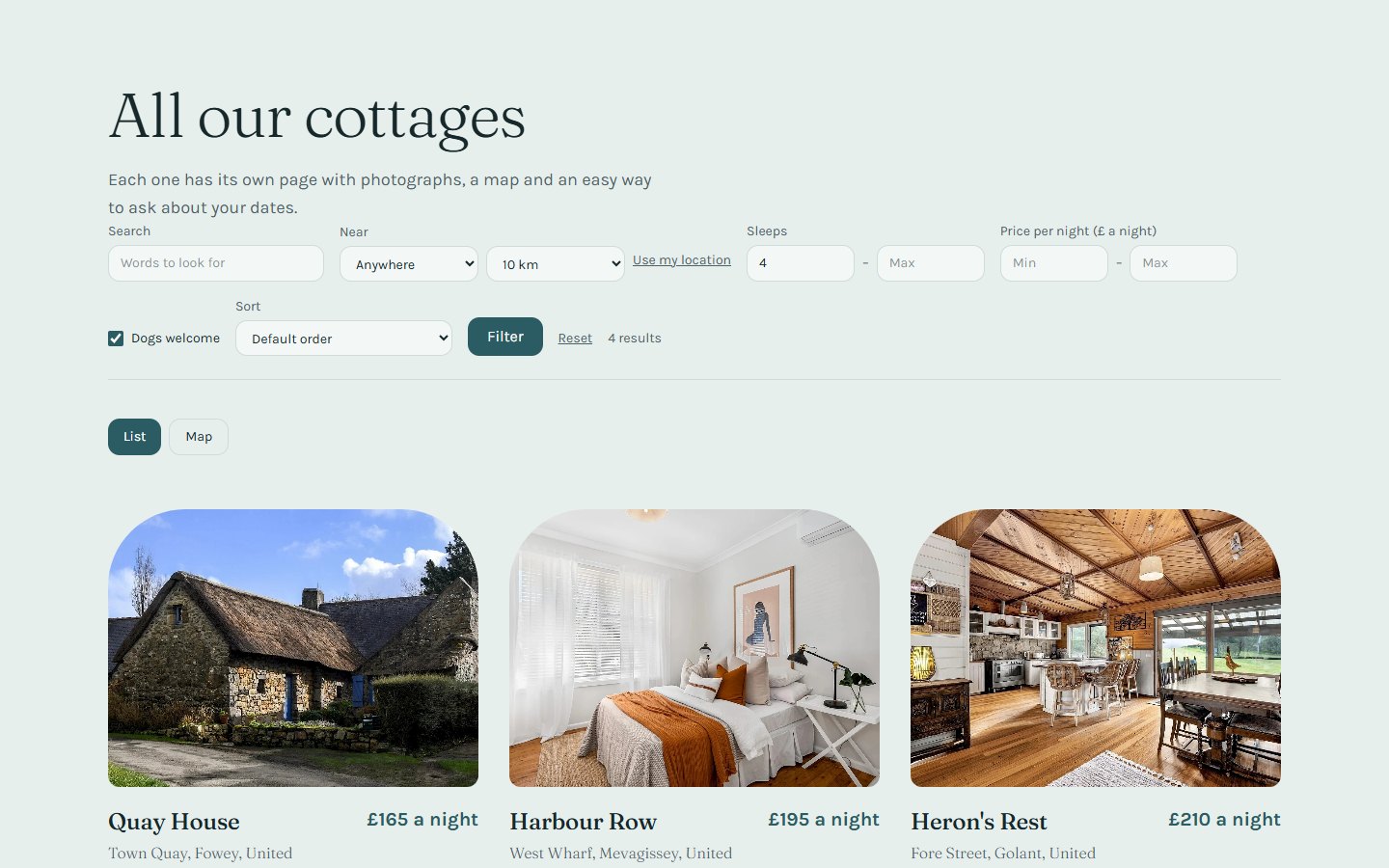
Filters add up. Below: the cottages that welcome dogs and sleep at least four.
Near a town, or near me
When your items have an address, visitors can pick a town and a distance, from 2 to 100 km. The towns come from your own addresses, so the list only offers places you really have. “Use my location” asks the browser for the visitor’s position only when they click it, only on a secure page, and rounds it to about a kilometre. No map service is called and nothing is sent anywhere else.
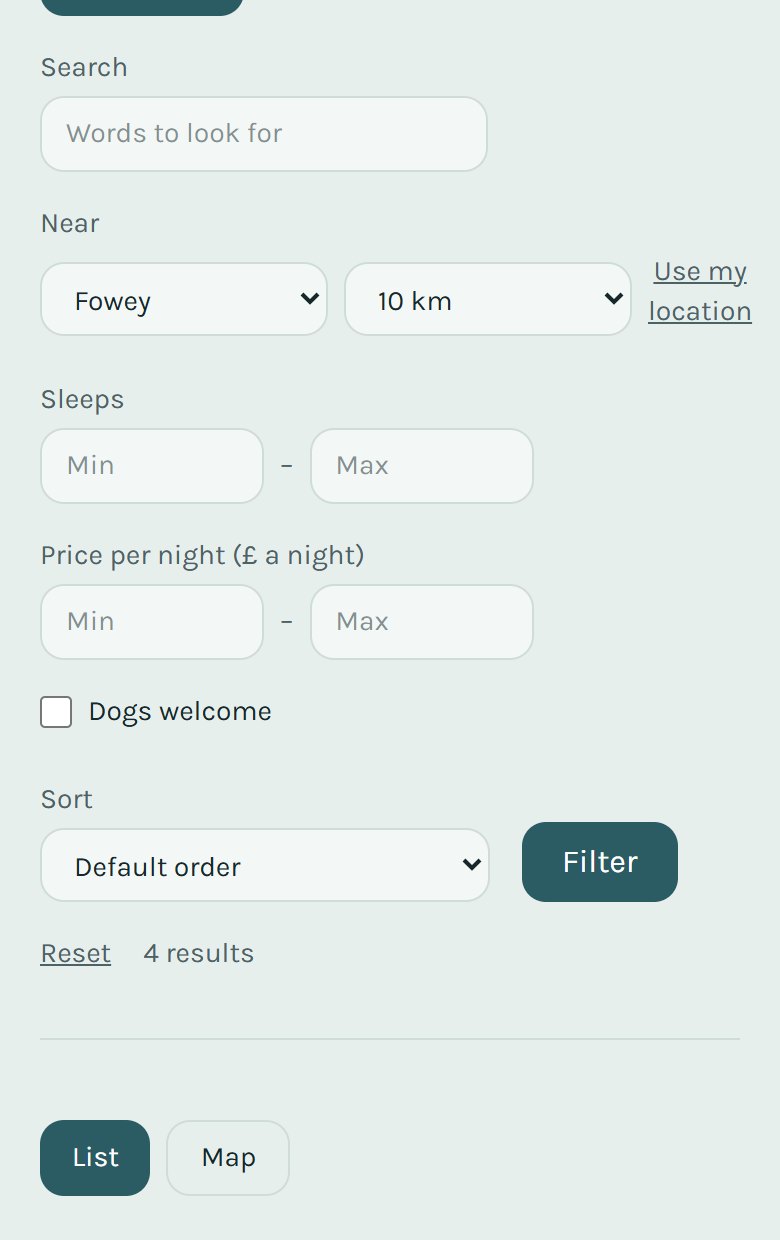
On a phone
On a small screen the filters stack one under another, with large fields that are easy to tap.
Cards that show what each item has
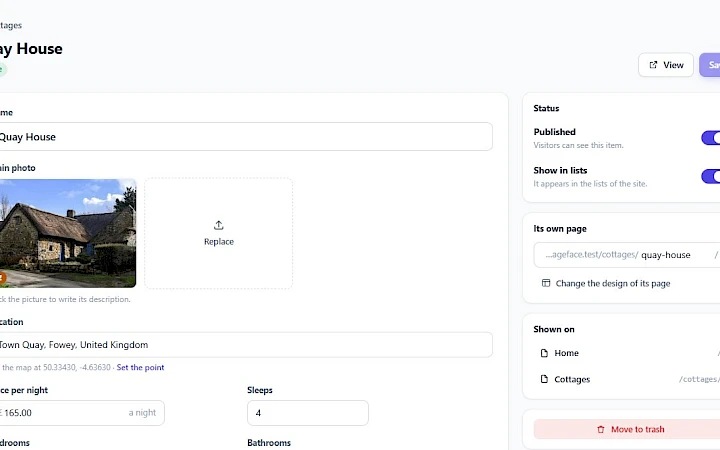
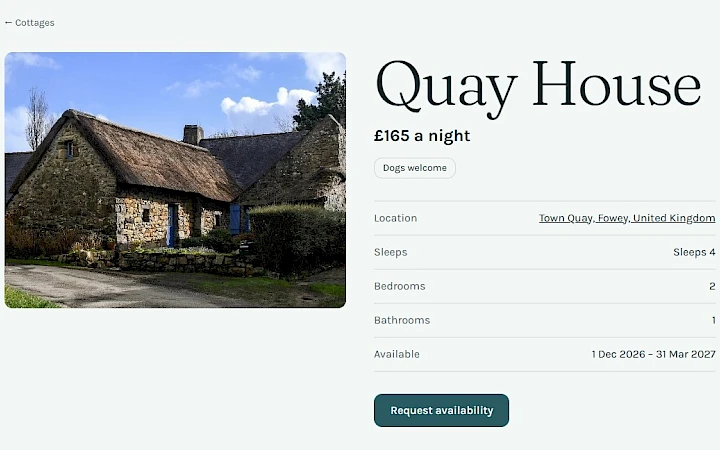
On websites the AI Builder makes, the cards under the filters now show a badge for a yes/no such as “Dogs welcome”, the dates when an item has a period, and only the facts an item really has. An item without a price no longer shows “From 0 €”.
How to turn it on
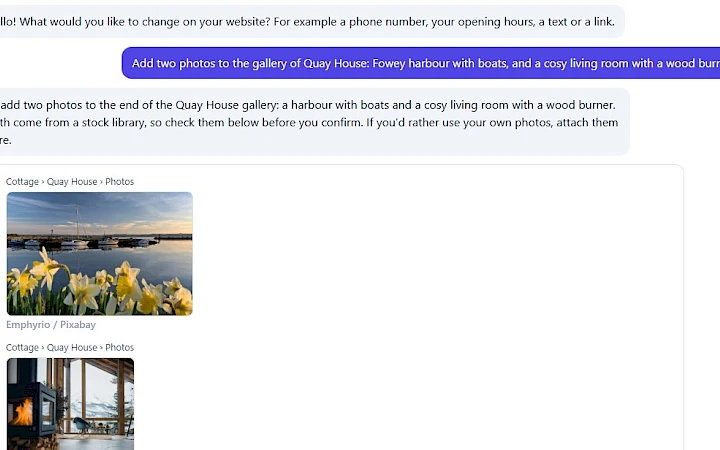
- Websites made with the AI Builder get the filters that suit their list when they are built. To change them, ask the AI assistant, for example: “Add a search and a ‘near a town’ filter to the cottages”.
- Lists you made yourself in the FaceFlow editor: open the list page and, in the list panel, tick up to six “Filters for visitors”.
The filter bar is a plain form. It works without JavaScript, and the page numbers keep the filters when visitors browse on. It is part of every website from version 1.0.4: websites are updated automatically, or straight away with “Update now”.