

What you need
An email address and a few minutes. No card is needed: the Starter plan is free, for as long as you like, and comes with a real website, your own domain and the FaceFlow editor. You can change plan at any time.
Create your account
- Open Create Account, or click Start free at the top of any page.
- Enter your Email Address and a Password of at least 8 characters, type the password again, and agree to the terms.
- Click Create Account. We send you an email with a confirmation link.
- Open the email and click the link (it works for 24 hours). Your account is ready: sign in with your email address and password.
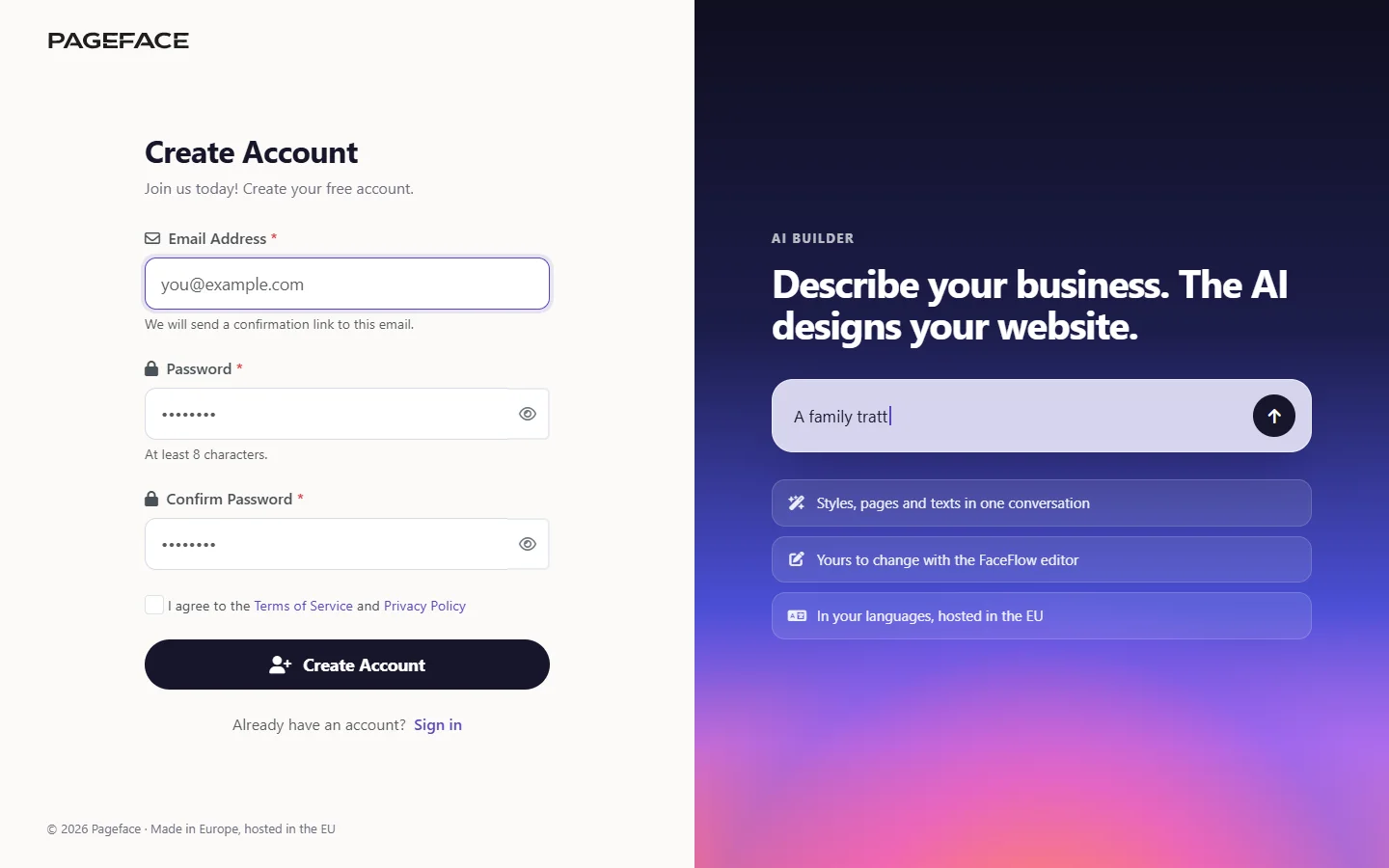
No email after a few minutes? Look in your spam folder, then register again with the same address.
Sign in, and keep your account safe
You sign in with your email address and password on the account page. Forgot the password? Click Forgot password? and we email you a link to set a new one; it works for one hour.
For more safety, turn on two-factor authentication: in Profile, choose Enable Two-Factor Authentication and scan the code with an authenticator app. From then on, signing in also asks for the 6-digit code the app shows.
Your account at a glance
The menu on the left of your account is where everything starts:
- Overview: your websites, the storage they use, your plan, and quick actions.
- AI Builder: design a new website in a conversation, change the design of a website, or ask the AI assistant to update one.
- My Apps: every website you have. From here you open a website, its editor, its settings and your own domain.
- Subscription and Billings: your plan, upgrades, and your invoices.
- Inbox and Activity: messages from Pageface, and what happened in your account.
- Support: on the paid plans, write to our team from your account.
- Profile: your email, password, language and two-factor authentication.
Two ways to make your website
With the AI Builder. You describe your business in a few sentences; the AI asks the questions that matter, proposes styles, shows you every page and builds the website. It is the fastest way to a website that is truly yours. Read Design your website with the AI Builder.
From a solution. Pick a complete website made for your trade, then put in your own business. Read Start from a solution.
Either way you get the same kind of website: it lives at its own Pageface address, you change it in the FaceFlow editor, and you can connect your own domain whenever you like.
Where your website lives
Every website has an address on pageface.com from the start, such as https://k7m2qa9x.pageface.com. You can choose a nicer one, such as https://yourbusiness.pageface.com, and connect your own domain, such as www.yourbusiness.com: see Connect your own domain.
To change the website, open My Apps and click Admin beside it, then sign in with the admin username and password you chose when you made it. You are in FaceFlow, the editor: see Edit your website in FaceFlow.
