

What a solution is
A solution is a complete website for a trade, ready to make your own: its pages, sections, example texts and pictures, and lists such as treatments, dishes or courses. Many were designed by our AI Builder for one kind of business, a nail studio, a trattoria or a language school, for example. Starting from one does not use an AI site build.
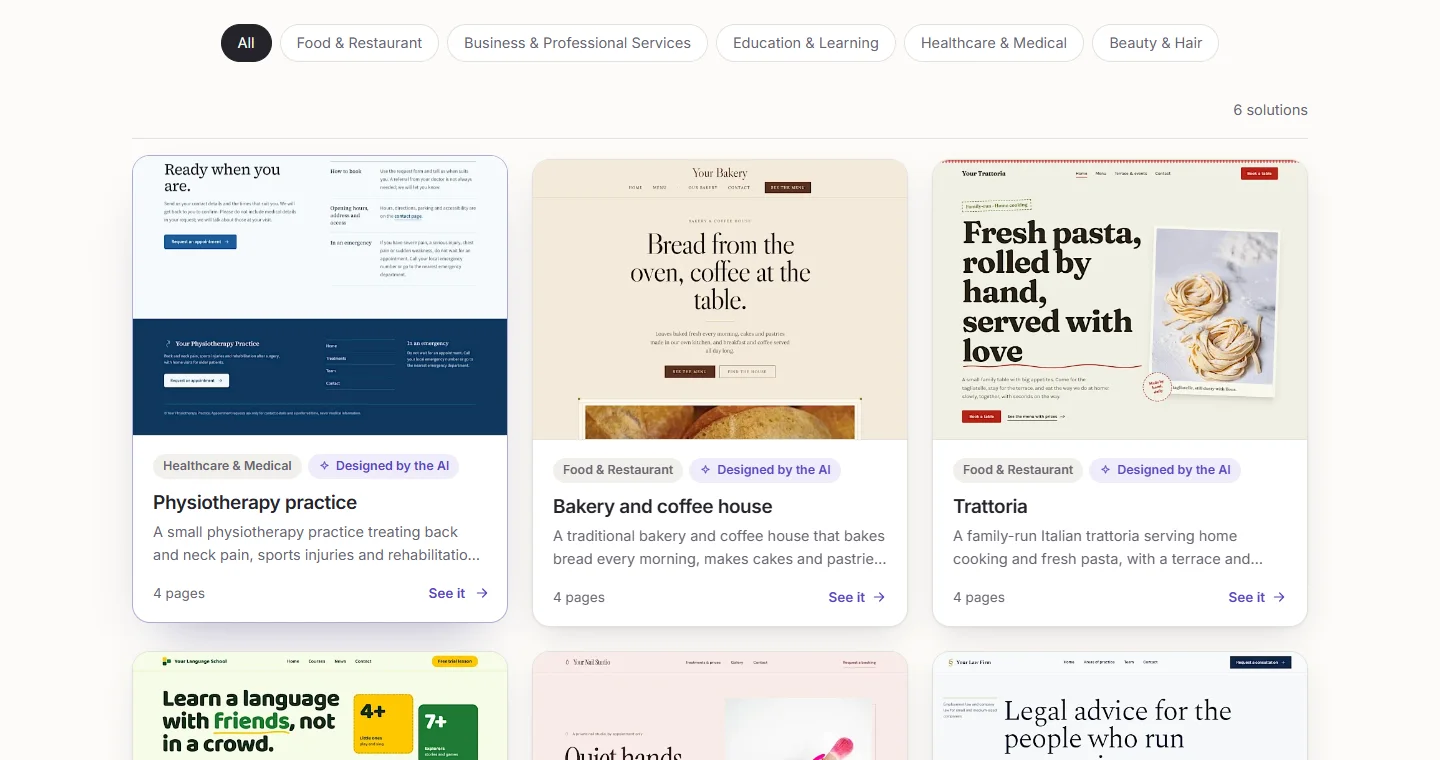
Find one for your business
- Open Solutions. Click an industry to see its solutions, or search for a word such as "bakery".
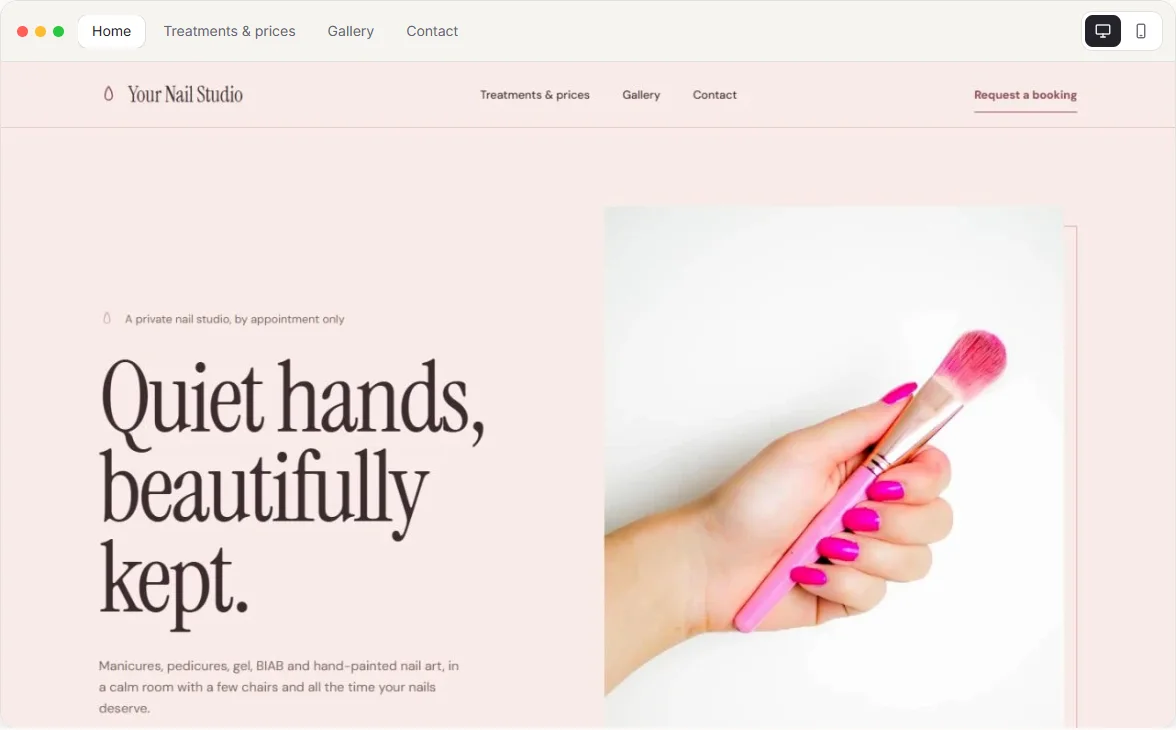
- Click a solution to see its page. The preview shows every page of it: click the tabs to change pages, scroll inside the frame to see a whole page, and switch between the desktop and the phone.
- Read What is in it and How you make it yours to see what you will get and what you will change.
- Click Start with this website. Without an account you first create one; then you land on the form of your new website, the solution already chosen.
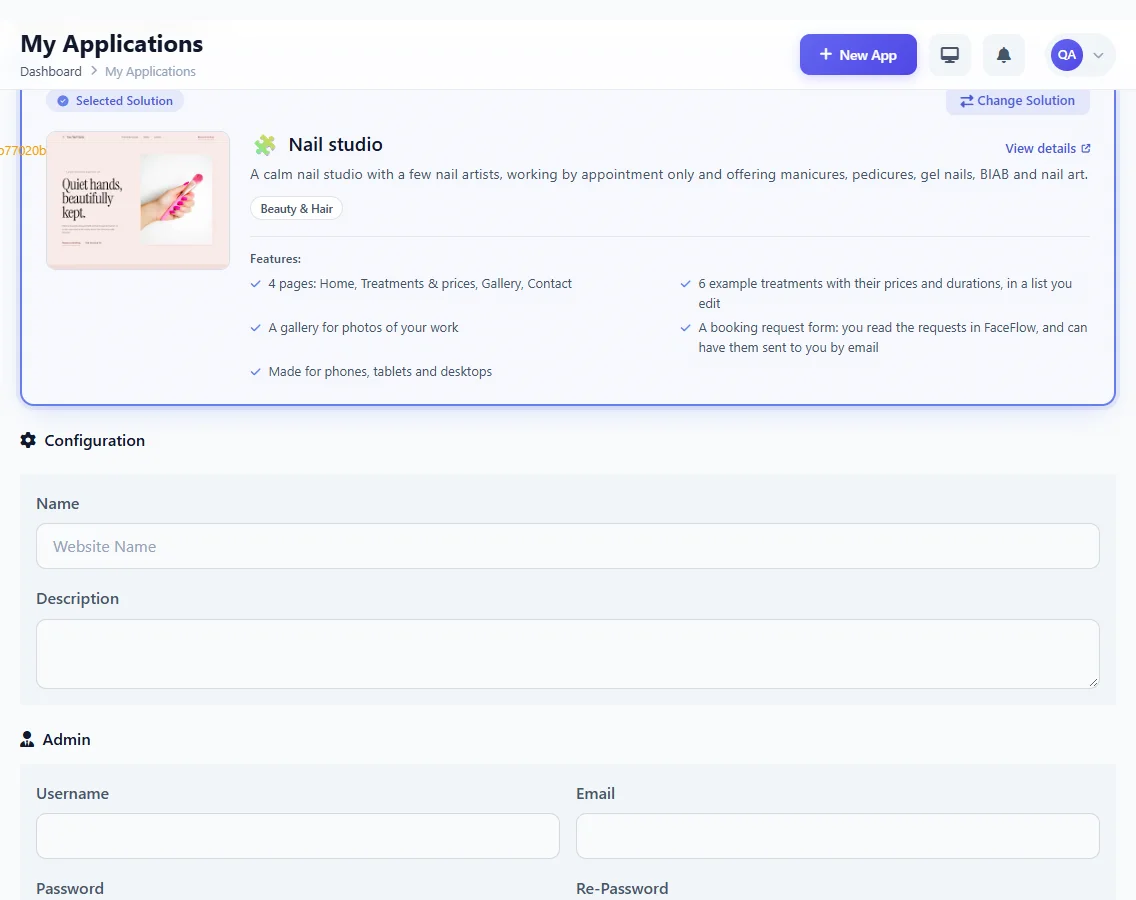
Fill in your new website
The form is in My Apps, under New App:
- Name and Description: your website's name, and a line about it for you.
- Username, Email and Password: how you sign in to your website's editor. The username starts with a letter and uses letters, digits or underscores; the password needs at least 8 characters with upper and lower case letters and a number.
- Admin Panel: the address of your editor's sign-in page, made for you; keep it, or choose your own.
- Server Timezone: the time your website's dates are shown in.
- Default Language, and with Enable Multi-language Content, your other languages.
- Address (optional): a name of your own on pageface.com, such as yourbusiness.pageface.com. You can also choose it later.
Click Create App. Pageface prepares your workspace, data, settings and languages, and tells you when Your app is ready. You find it in My Apps.
Make it yours
Click Admin beside your website in My Apps and sign in with the username and password you chose. In FaceFlow:
- Put in your business information in Site settings: phone, email, address and opening hours, kept in one place for every page.
- Go through the pages: click each section, write your own texts and replace the pictures. Use Free photos when you have none of your own.
- Replace the example items of each list with your own: your treatments and prices, your dishes, your courses.
- Click Publish on each page when it is ready.
The example texts of the solutions designed by the AI are in English: the AI assistant puts them into your words and your languages. See Change your website by asking the AI assistant.
When a solution is not on your plan
Some solutions come with a higher plan; their page says which. If your plan does not include one, its page offers to upgrade. On the form, a plan that has no room for another website says so, with Upgrade Your Plan.