

Before you start
A website made by the AI Builder uses one AI site build of your plan: the Starter plan has 1, Pro has 3 and Business has 8. Builds do not run out with the month; you use them when you like. Have at hand what makes your business yours: what you do and for whom, your address and contact details if customers come to you, and a few websites or pictures you like.
Open your account and click AI Builder, then Start a new design. The progress bar shows the five steps: Plan, Style, Home page, All pages and Website.
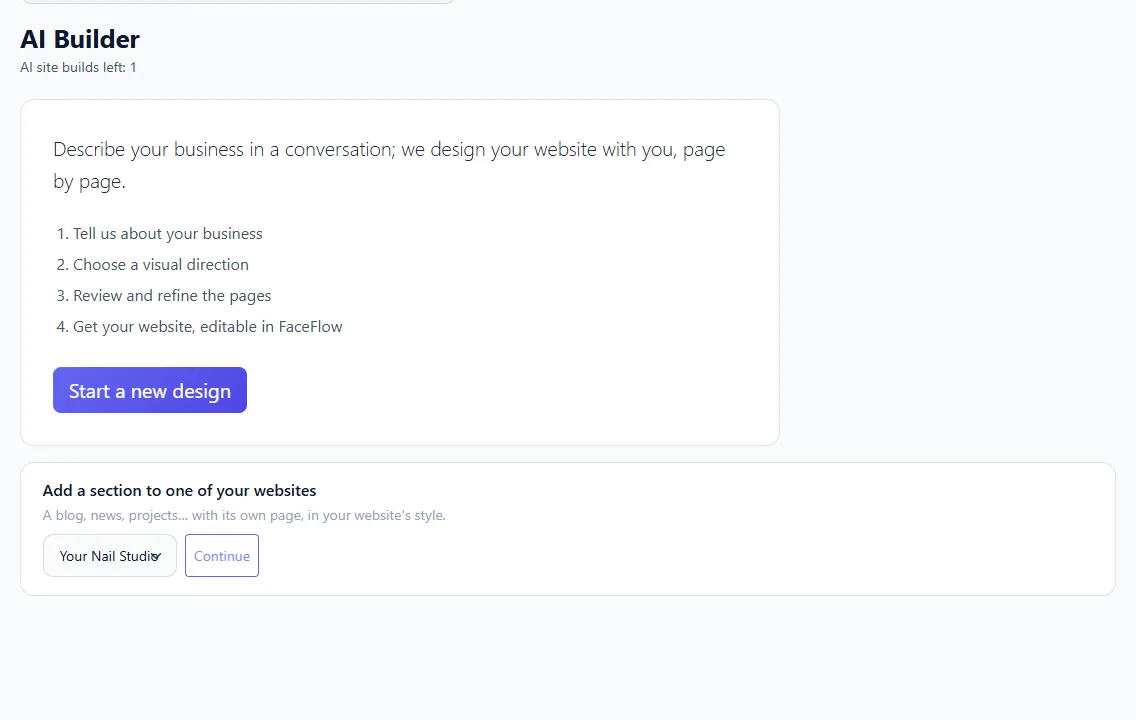
1. Tell the AI about your business
The AI greets you and asks what you do, for whom, and what the website should achieve. A few sentences are enough: write them in the box and click Send. It then asks two or three questions at a time, about your customers, the style you like, your address and opening hours, the languages of your website and the lists you keep up to date, such as dishes, treatments, courses or team members. When you are not sure, click one of the suggested answers, or You decide for me.
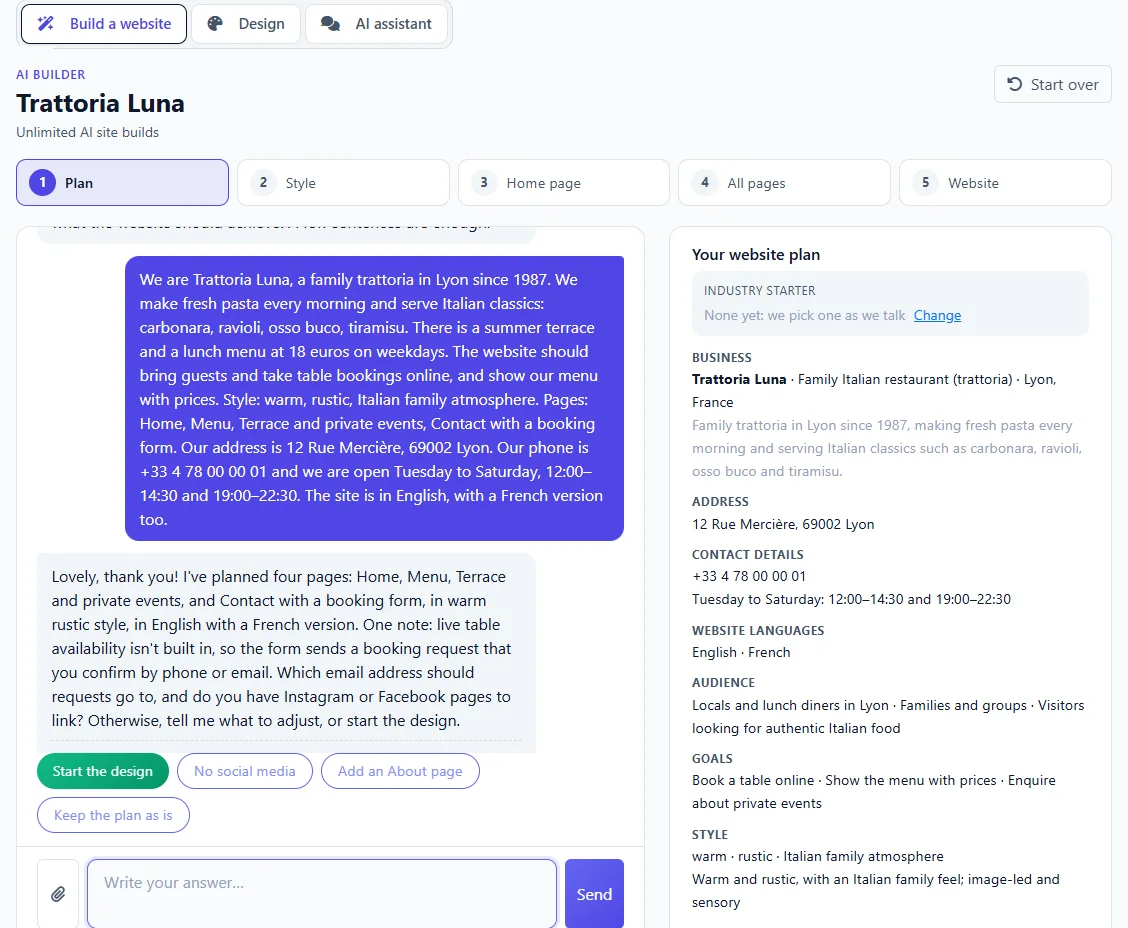
Beside the conversation, Your website plan fills in as you talk: the business, address, contact details, languages, audience, goals, style and pages, and what is still needed. The AI also picks an Industry starter for your trade; click Change to choose another.
A tip: the more concrete you are, the better the website. "A family trattoria in Lyon with fresh pasta, a summer terrace and private dinners for up to 30 guests" gives the AI far more to work with than "a restaurant".
Show it what you like
Click the paperclip to attach a reference design: a screenshot of your current website or of one you like, a mockup, a sketch, or an HTML page or .zip template. You can attach up to 3 pictures (10 MB each) or one template (20 MB), and you confirm the file is yours or that you may use it. The AI follows its layout, colours and mood. It cannot open a website from its address, so take a screenshot instead.
2. Choose a style
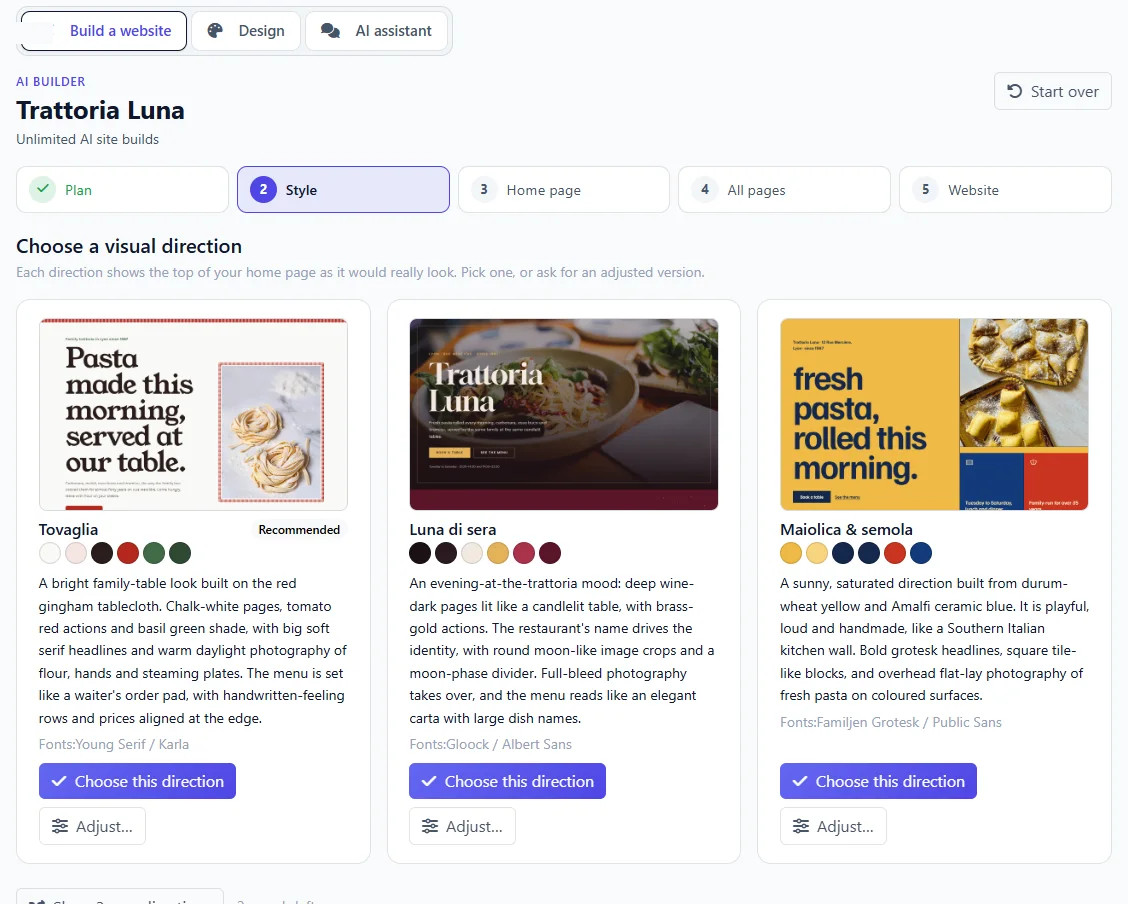
When the plan is complete, click Start the design; this is when the design uses one AI site build. A minute or two later you see three visual directions, each showing the top of your home page as it would really look, with its colours and fonts.
- Click Choose this direction on the one you like.
- Almost right? Click Adjust…, write what should change (for example "warmer colours, a more classic font") and click Create adjusted direction.
- None of them? Click Show 3 new directions. You have up to 3 rounds per design.
3. Review the home page
The AI designs your whole home page in that style. Switch between Desktop and Mobile to see it on both. To change a part of it, click Select a section to change, click the section in the preview, describe what you want and click Apply change: only that section is redesigned, the rest of the page stays as it is. Undo last change takes a change back.
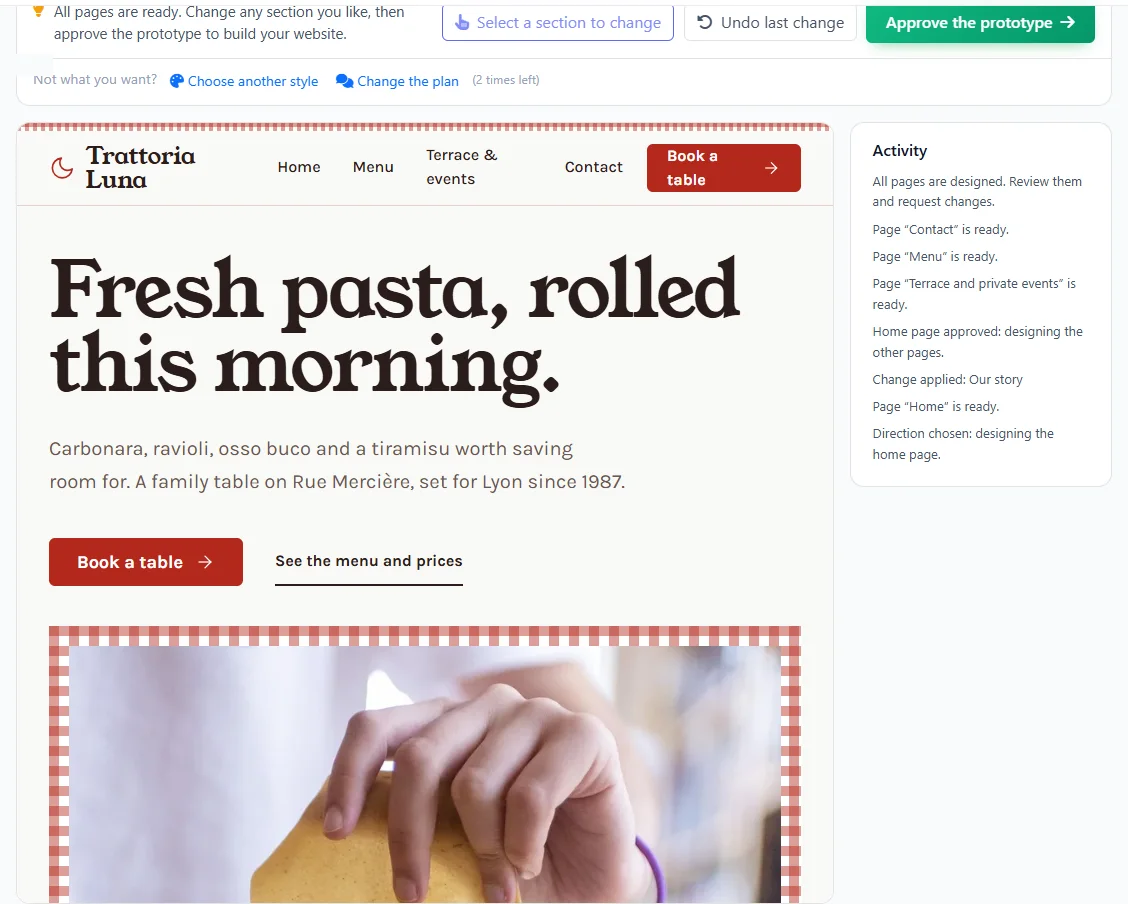
Each section change uses a twentieth of an AI site build, and a design can have up to 30 of them. When the home page is right, click Approve the home page and design the other pages.
4. Review all the pages
The other pages are designed in the style of your home page; each tab shows when its page is ready. Look through them, change any section the same way, and click Approve the prototype when you are happy.
Not what you wanted? Under Not what you want? you can Choose another style or Change the plan, twice per design, without using another build. Start over closes the design.
5. Build your website
The AI prepares your site and shows its build plan: the pages and their editable blocks, the example items to replace with your own, where the messages of your forms go, and the links to check. Fill in Your app:
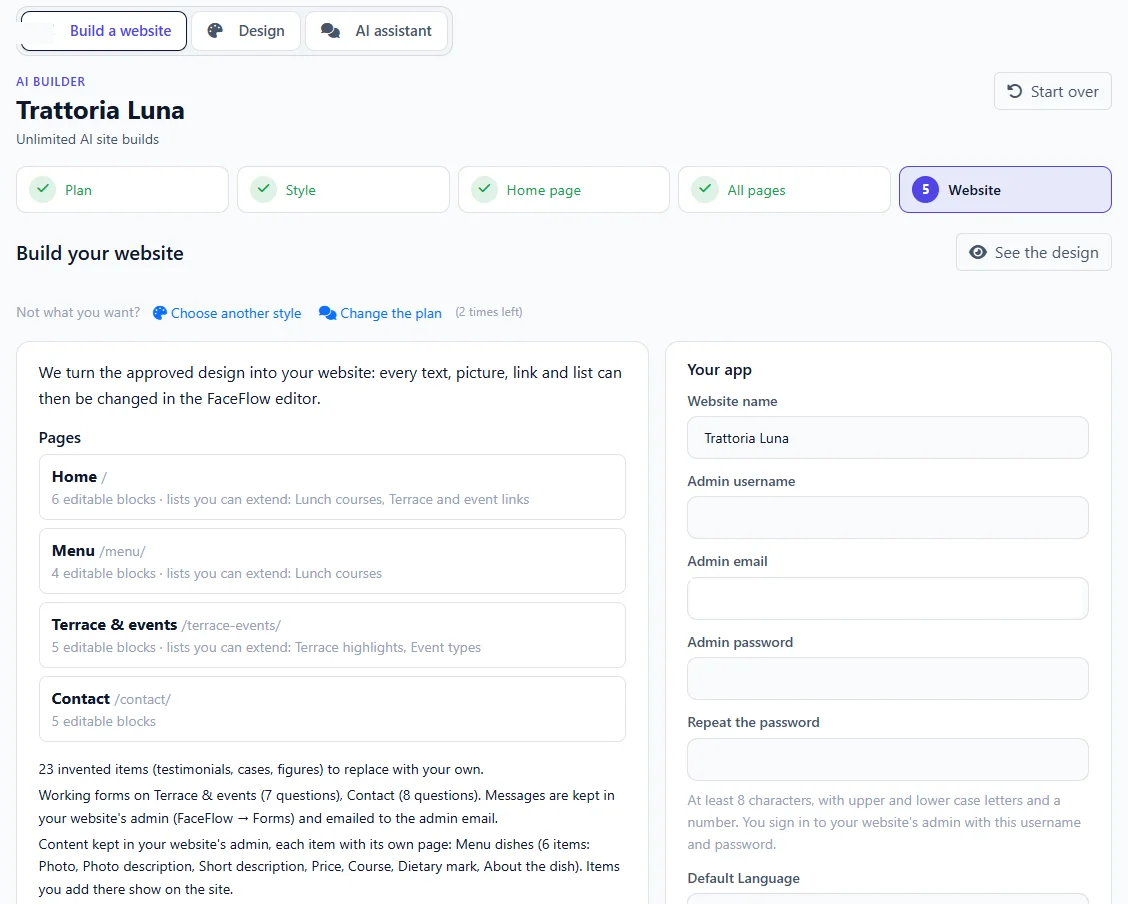
- Website name: filled in with your business name.
- Admin username, Admin email and Admin password: how you sign in to your website's editor. The password needs at least 8 characters, with upper and lower case letters and a number.
- Default Language, and the other languages of your website. Languages you chose in the conversation are already translated by the AI.
Click Build my website. The build takes a few minutes, and you can leave the page while it runs.
Your website is ready
When it is done you see Your website is ready, with Open the website, Open the admin and My Apps. It is a website like any other in your account.
- Pictures come from Pixabay, a free photo library whose pictures may be used commercially. Where no photo fitted, a soft placeholder named after its place waits for your own photo: open the page in FaceFlow and click the picture to upload yours.
- Example items such as dishes or team members are there to show the layout: replace them with your own in FaceFlow, or ask the AI assistant.
- Next steps: make it yours in FaceFlow, connect your own domain and help search engines find it.
What the AI Builder does not do yet
Online payment and shops, member logins, real-time booking and file uploads in forms are not available yet. Forms send requests to you, which you answer yourself. Ask in the conversation: the AI tells you what it can do instead.