

Before you start
You need a domain you bought from a registrar or hosting company, and access to its DNS settings (sometimes called the DNS zone or DNS records). Every Pageface plan can use its own domain, with HTTPS included.
Decide which address your visitors should use. Most businesses use the www address, such as www.yourbusiness.com: enter exactly that address below. Each website has one domain of its own.
1. Save the domain on your website
- In your account, open My Apps and click Manage beside your website.
- Confirm with your account password: settings ask for it before any change.
- In Custom Domain, enter your domain, for example www.yourbusiness.com, and click Save.
The DNS settings then appear below it, with the two records to add.
2. Add two records where you bought the domain
Sign in where you manage the domain, open its DNS settings and add:
- A CNAME record. Name: the part before your domain, such as www (or @ for the domain itself, as Pageface shows). Value: ada.pageface.com.
- A TXT record. Name: _pageface. Value: the code Pageface shows you, 40 characters long. It proves the domain is yours.
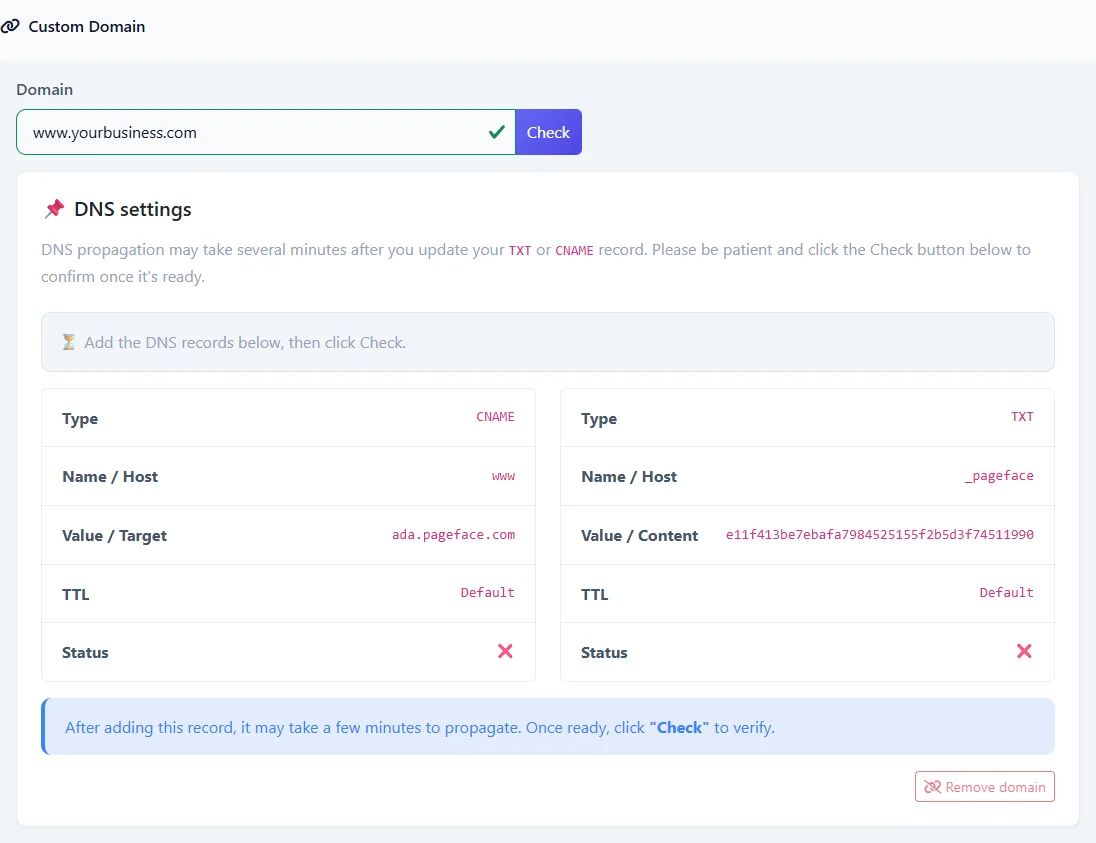
Leave the time to live (TTL) as it is. Copy the values from your settings page rather than typing them.
A domain without www? Many providers do not allow a CNAME record on the domain itself: use their ALIAS, ANAME or "CNAME flattening" record pointing to ada.pageface.com instead.
3. Check and connect
Back on your website's settings, click Check. DNS changes can take a few minutes, sometimes longer, to be seen everywhere: if the TXT record is not found yet, wait a little and check again. When it is found, Pageface connects the domain: Connected. Your app is live at your address.
The HTTPS certificate is made on the first visit to your address and can take a minute. After that it renews by itself.
If it does not work
- The TXT record is not found. Check its name is exactly _pageface, and its value the code shown, without spaces. Some providers add your domain to the name by themselves: then enter only _pageface.
- The page keeps redirecting. If your domain is behind Cloudflare, set its SSL/TLS encryption mode to Full (strict) rather than Flexible, then check again.
- The domain is in use by another account. A domain belongs to the first account that connects it. If it is yours, write to us.
Your Pageface address
Your website keeps its address on pageface.com, connected domain or not, and its editor's sign-in stays there too. In Manage you can choose a name of your own, such as yourbusiness.pageface.com: 4 to 30 lowercase letters, digits or hyphens. Change it later and the old one leads to the new one for 30 days, then only you can take it back for 90 more days. An address can change 3 times in 30 days.
Remove a domain
In Manage, click Remove domain. Your website is then no longer reachable at it, and stays at its Pageface address.