

Lists: the content you keep up to date
A list holds things of the same kind that you add and change often: dishes, treatments and prices, courses, team members, news articles or events. Each list has its own entry under Content in FaceFlow, and its items appear on the pages that show them.
- Open the list, for example Dishes, and click New.
- Fill in the item: its texts in each language, its pictures, its price or other details.
- Click Save. A new item starts as a draft: Publish it once it is ready, and it appears on your website.
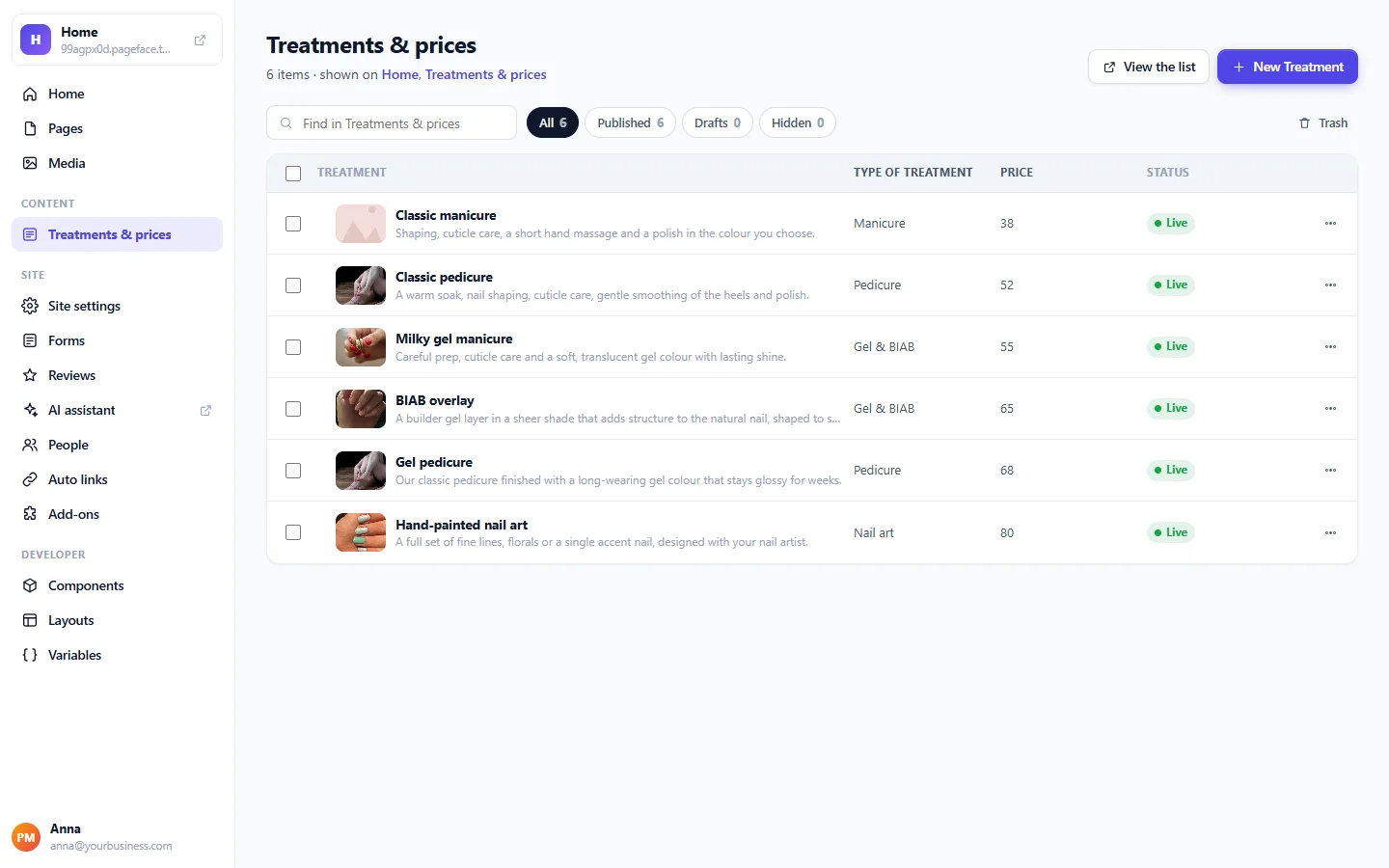
Search the list, or filter it by Published, Drafts and Hidden. Choose several items at once to publish, hide or move them to the trash; Bring back restores an item from the trash. Changes to a published item show on your website when you save it.
Have your prices in a spreadsheet? Save it as a CSV file and give it to the AI assistant: it fills the list for you. See Change your website by asking the AI assistant.
Forms: requests from your visitors
Contact, booking or quote request forms collect what your visitors send. Open Forms in FaceFlow to see your forms and their entries.
- Fields: what the form asks.
- After sending: the Thank-you message your visitors read, and the Email about each entry: Send to up to 5 addresses, who an answer goes to, its subject and message.
- Entries: every request, newest first. Open one to read it; Send again resends an email that could not be sent; Download (CSV) exports them all.
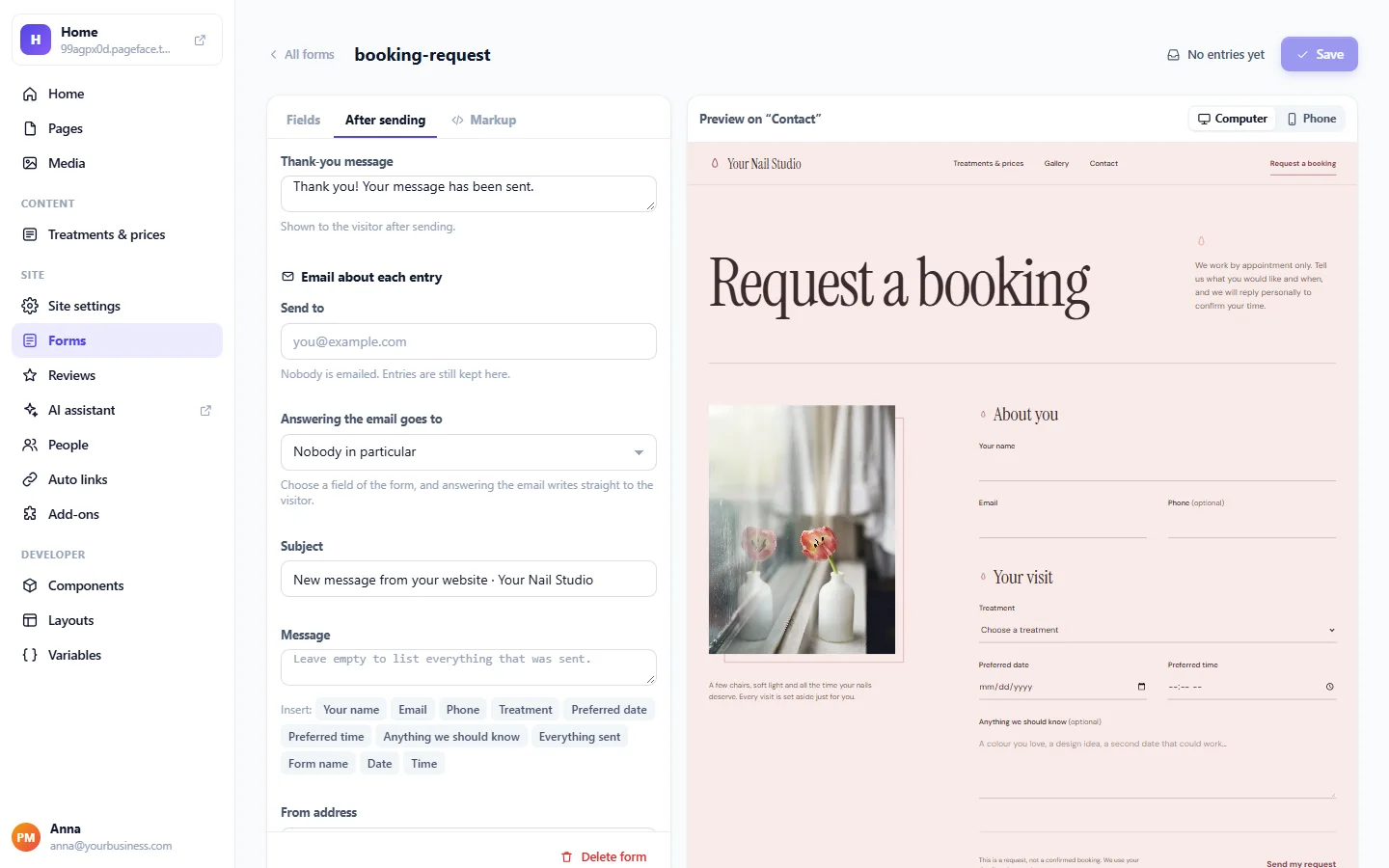
Make sure a form has an address to send to: a form nobody is emailed about shows a warning. Booking forms send requests, they do not reserve a time by themselves: you answer each one and confirm it.
Reviews: what your customers say
Visitors can leave a review on the pages that show reviews. In Reviews you choose when a review appears: At once, After your approval, When the visitor confirms their email, or Confirmed email, or your approval.
For each review you can Show, Hide, put it Back to waiting, or Delete it. Reviews waiting for you are also on FaceFlow's Home, with Approve and Hide. Turn on Tell me about new reviews to receive an email for each one; the AI assistant can remind you of reviews that wait.
How many of each
Your plan sets how many lists and items, working forms and review sections a website can have. Compare them on the pricing page.